How to open an .evtx file on Windows
An .evtx file is a saved Windows event log. Someone exported it from Event Viewer, copied it off a server, or attached it to a support ticket. Windows already has three tools that can open it.
Short answer: double-click the file, or open Event Viewer and choose Action, then Open Saved Log. From a command line, use Get-WinEvent -Path in PowerShell or wevtutil qe with /lf:true.
Option 1: Event Viewer
- Press Windows+R, type
eventvwr.mscand press Enter. - Open the Action menu and choose Open Saved Log.
- Select the
.evtxfile and choose Open. - Event Viewer asks for a display name and a folder to list it under. The defaults are fine; choose OK.
The log appears under Saved Logs in the left pane. Select it, then use Filter Current Log in the Actions pane to narrow it by level, event ID, source and time, or Find to search the text. Double-clicking an .evtx file in File Explorer normally does the same thing, because Windows opens the extension with Event Viewer.
Each saved log is a separate entry, so comparing two files means switching back and forth between them, and very large files take a while to load and filter.
Option 2: PowerShell and Get-WinEvent
Get-WinEvent reads a file directly with -Path. The 20 most recent events:
Get-WinEvent -Path 'C:\Logs\system.evtx' -MaxEvents 20Only critical and error events. In -FilterHashtable, the Path key takes the file, and Level uses 1 for Critical, 2 for Error, 3 for Warning and 4 for Information:
Get-WinEvent -FilterHashtable @{ Path = 'C:\Logs\system.evtx'; Level = 1, 2 }Specific event IDs, with the full message of each:
Get-WinEvent -FilterHashtable @{ Path = 'C:\Logs\system.evtx'; Id = 41, 1074, 6008 } |
    Format-List TimeCreated, Id, ProviderName, Message
Two files from different machines, merged into one list in time order:
Get-WinEvent -Path 'C:\Logs\server1-system.evtx', 'C:\Logs\server2-system.evtx' |
    Sort-Object TimeCreated |
    Format-Table TimeCreated, MachineName, Id, ProviderName -AutoSize
If nothing matches a filter, Get-WinEvent stops with "No events were found that match the specified selection criteria". That is an empty result, not a broken file.
Option 3: wevtutil
wevtutil ships with Windows and works in Command Prompt. The /lf:true switch tells it the first argument is a file rather than a channel name:
wevtutil qe C:\Logs\system.evtx /lf:true /c:20 /rd:true /f:text/c:20 limits the output to 20 events, /rd:true reads newest first, and /f:text prints readable text instead of XML. To filter, add an XPath query with /q:
wevtutil qe C:\Logs\system.evtx /lf:true /q:"*[System[(Level=1 or Level=2)]]" /f:textThe output is plain text, which is handy for piping to findstr but hard to read for more than a handful of events.
When the file will not open
- The file is in use. The active logs in
C:\Windows\System32\winevt\Logsare held open by Windows. Read the live log instead (Get-WinEvent -LogName System), or export a copy first withwevtutil epl System C:\Logs\system.evtx. Exporting the Security log usually needs an elevated prompt. - The file is incomplete or damaged. An interrupted copy or download, or a file exported while still being written, can fail to open or stop partway. Copy or export it again.
- The file ends in .evt, not .evtx. That is the older format from Windows XP and Server 2003. Event Viewer can still open it.
Get-WinEventcan read it only in oldest-first order, so add the-Oldestswitch:Get-WinEvent -Path 'C:\Logs\app.evt' -Oldest.
Opening .evtx files in Event Log Triage
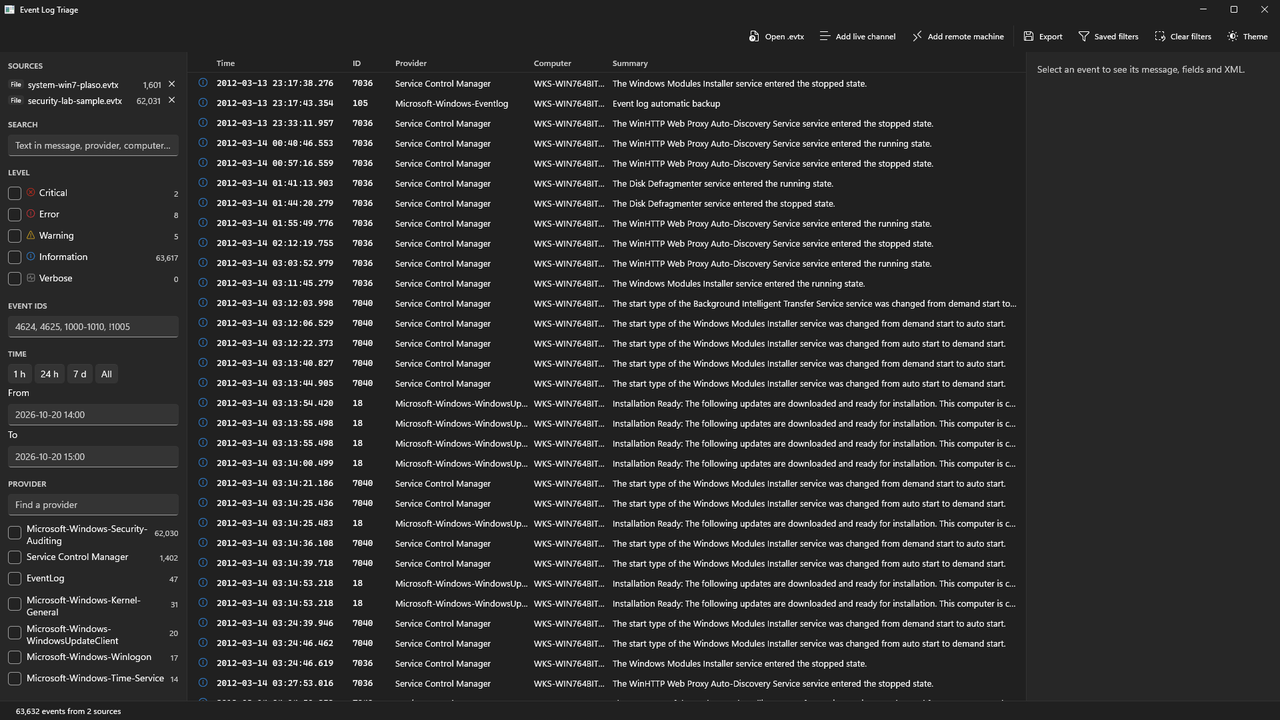
In Event Log Triage, choose Open .evtx (Ctrl+O), drag files onto the window, or double-click an .evtx file once the app is installed. Open as many files as you need: they all go into one list, sorted by time, with a Computer column so the machines stay distinguishable. The status bar counts events as a file reads, so you can see a large export making progress.
From there, tick Critical and Error, pick a time range, or type event IDs such as 41, 1074, 6005-6009. If only some records in a file are damaged, the app loads the rest and the status bar says how many were unreadable.
Where Event Log Triage helps
If you open an .evtx file once in a while, Event Viewer is free and does the job. Event Log Triage is worth it when files arrive regularly: from customers, from several servers, or alongside a live problem. It puts several files, the live channels on your computer and remote computers in one timeline, filters with event ID ranges and exclusions, and exports exactly what you see to CSV or JSON. It does not monitor or alert, and it never changes a log.
Get Event Log Triage
Free 7-day trial, then a one-time purchase: $9.99 on the Microsoft Store. No account, no telemetry.