How to view Windows event logs on a remote computer
You can read another Windows computer's event logs without signing in to it. Event Viewer, PowerShell and wevtutil all connect over the same remote event log service, and most failures come from the remote side, so prepare that first.
Short answer: on the remote computer, enable the Remote Event Log Management firewall rules and put your account in the Event Log Readers group. Then use Event Viewer's Connect to Another Computer, or Get-WinEvent -ComputerName.
Step 1: Prepare the remote computer
Open the firewall. Run this once from an elevated prompt on the remote computer:
netsh advfirewall firewall set rule group="Remote Event Log Management" new enable=yesThe PowerShell equivalent, also elevated:
Enable-NetFirewallRule -DisplayGroup "Remote Event Log Management"On a domain, the same rule group can be enabled for many computers at once through Group Policy.
Grant read access. The account you connect with must be in the remote computer's Event Log Readers group, or in Administrators. To add a domain user, on the remote computer:
Add-LocalGroupMember -Group "Event Log Readers" -Member "CONTOSO\jsmith"Check the network. The name must resolve and RPC must get through: TCP 135 plus dynamic high ports. If ping SERVER01 fails, the event log connection will most likely fail too.
Domain accounts usually need no extra step. Workgroup computers usually need you to type a user name and password that exist on that computer.
Option 1: Event Viewer
- Open Event Viewer (
eventvwr.msc). - In the left pane, right-click Event Viewer (Local) and choose Connect to Another Computer.
- Select Another computer and type its name, for example
SERVER01. - To use a different account, tick Connect as another user, choose Set User and enter the user name and password.
- Choose OK. The tree now shows the remote computer's logs, and Filter Current Log works as it does locally.
Event Viewer shows one computer at a time, so comparing two servers means two windows, and listing a large log across a slow link takes a while.
Option 2: PowerShell and Get-WinEvent
Get-WinEvent -ComputerName uses the same remote event log connection as Event Viewer, not PowerShell remoting, so it needs the same firewall rules and group membership and nothing else. The 50 most recent System events:
Get-WinEvent -ComputerName SERVER01 -LogName System -MaxEvents 50With a different account:
$cred = Get-Credential
Get-WinEvent -ComputerName SERVER01 -Credential $cred -LogName System -MaxEvents 50
Filter on the remote side with -FilterHashtable so only matching events cross the network. Reboots and unexpected shutdowns in the last week:
Get-WinEvent -ComputerName SERVER01 -FilterHashtable @{
    LogName   = 'System'
    Id        = 41, 1074, 6008
    StartTime = (Get-Date).AddDays(-7)
} | Format-Table TimeCreated, Id, ProviderName, Message -Wrap
Errors from two servers in the last day, merged in time order:
'SERVER01', 'SERVER02' | ForEach-Object {
    Get-WinEvent -ComputerName $_ -FilterHashtable @{
        LogName = 'System'; Level = 1, 2; StartTime = (Get-Date).AddDays(-1)
    }
} | Sort-Object TimeCreated |
    Format-Table TimeCreated, MachineName, Id, ProviderName -AutoSize
If PowerShell remoting (WinRM) is set up but the event log rules are not, run the query on the remote computer instead:
Invoke-Command -ComputerName SERVER01 -ScriptBlock { Get-WinEvent -LogName System -MaxEvents 50 }Option 3: wevtutil
wevtutil takes /r for a remote computer:
wevtutil qe System /r:SERVER01 /c:20 /rd:true /f:textWith a different account, where /p:* prompts for the password instead of putting it on the command line:
wevtutil qe System /r:SERVER01 /u:CONTOSO\jsmith /p:* /c:20 /rd:true /f:textTo list the channels the remote computer has:
wevtutil el /r:SERVER01Common errors
- Access is denied. The account is not in Event Log Readers or Administrators on the remote computer, or a workgroup computer needs explicit credentials.
- The RPC server is unavailable. The firewall rules are not enabled, the computer is off or unreachable, or something between the networks blocks RPC.
- The Security log is refused but System works. Reading Security needs more rights than the other logs; check the group membership above.
Remote computers in Event Log Triage
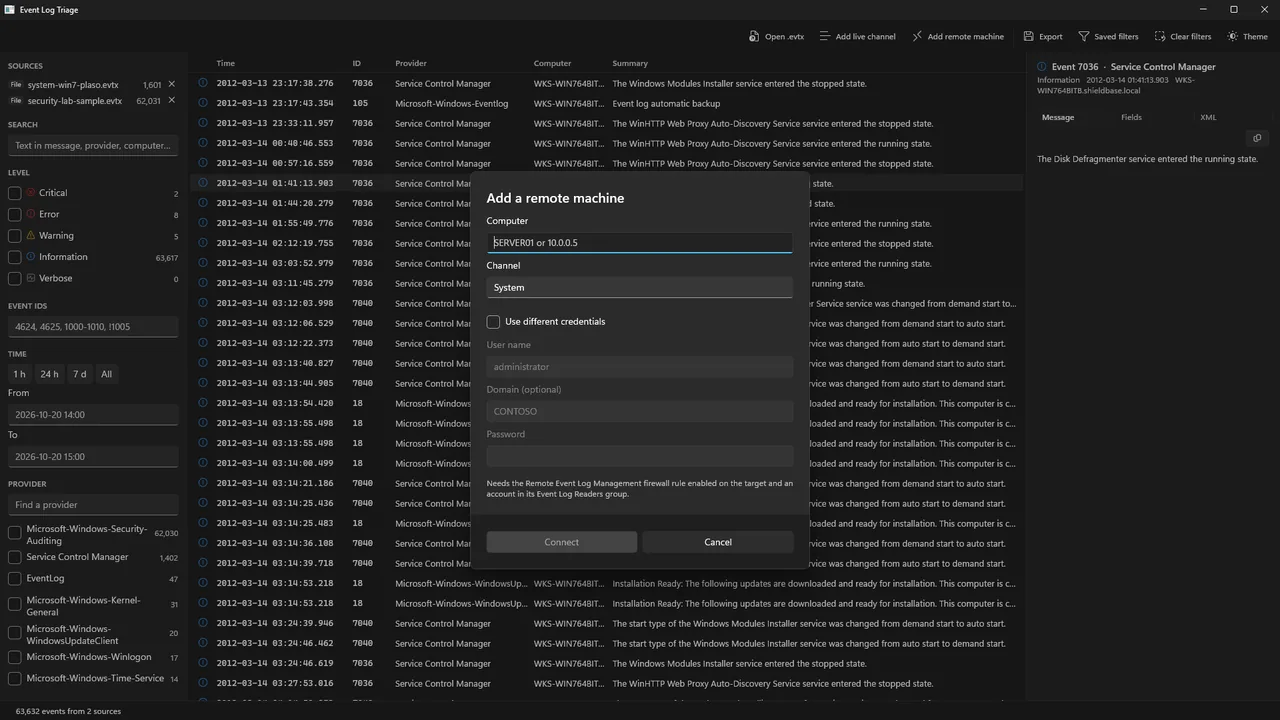
In Event Log Triage, choose Add remote machine, type the computer name and pick a channel. Tick Use different credentials to enter a user name, optional domain and password; credentials stay in memory for that connection only. The remote computer's events go into the same list as your .evtx files and local live channels, sorted by time, with a Computer column. Add a second computer the same way and the two sit side by side in one timeline.
The requirements are the same as above: the firewall rules, Event Log Readers membership and RPC. Event descriptions are rendered with the provider information on your own computer. Microsoft providers are present everywhere; a third-party product installed only on the remote computer shows its raw event data, and the Fields tab says so.
Where Event Log Triage helps
For a quick look at one server, Event Viewer or Get-WinEvent is enough. Event Log Triage helps when you are comparing machines, mixing a customer's exported file with live channels from their server, or would rather not open an RDP session just to read a log. You filter all of it at once by level, provider, computer, event ID and time, then export what you found. It cannot get past a firewall or missing permissions, and it does not follow logs live; re-add a channel to refresh it.
Get Event Log Triage
Free 7-day trial, then a one-time purchase: $9.99 on the Microsoft Store. No account, no telemetry.